

Why Use Functions
Functions offer several key benefits:- Turn words into logic - Describe what you want in plain language and Create generates the code
- Separate UI from Logic - Keep pages focused on presentation while Functions handle powerful operations
- Test in Isolation - Debug and perfect logic independently from your UI
- Reuseable - Use Functions across pages and components once they’re working
- External APIs - Functions can connect securely to thousands of APIs using Secrets
- Composeable - Build powerful features by combining Functions with Integrations, Databases, and other Functions
- Upload interface for PDFs
- Code to display the document
- AI analysis of images
- AI text summarization
- Error messages
- Loading screens
- A clean upload interface
- Document display
- A button that calls your analysis Function
- AI image analysis
- AI text summarization
- Error handling
Creating Functions
Create Functions in several ways:- Logo Menu > New Function
-
Press
option-F(oralt-Fon Windows) -
Type
/in chat > Create Function
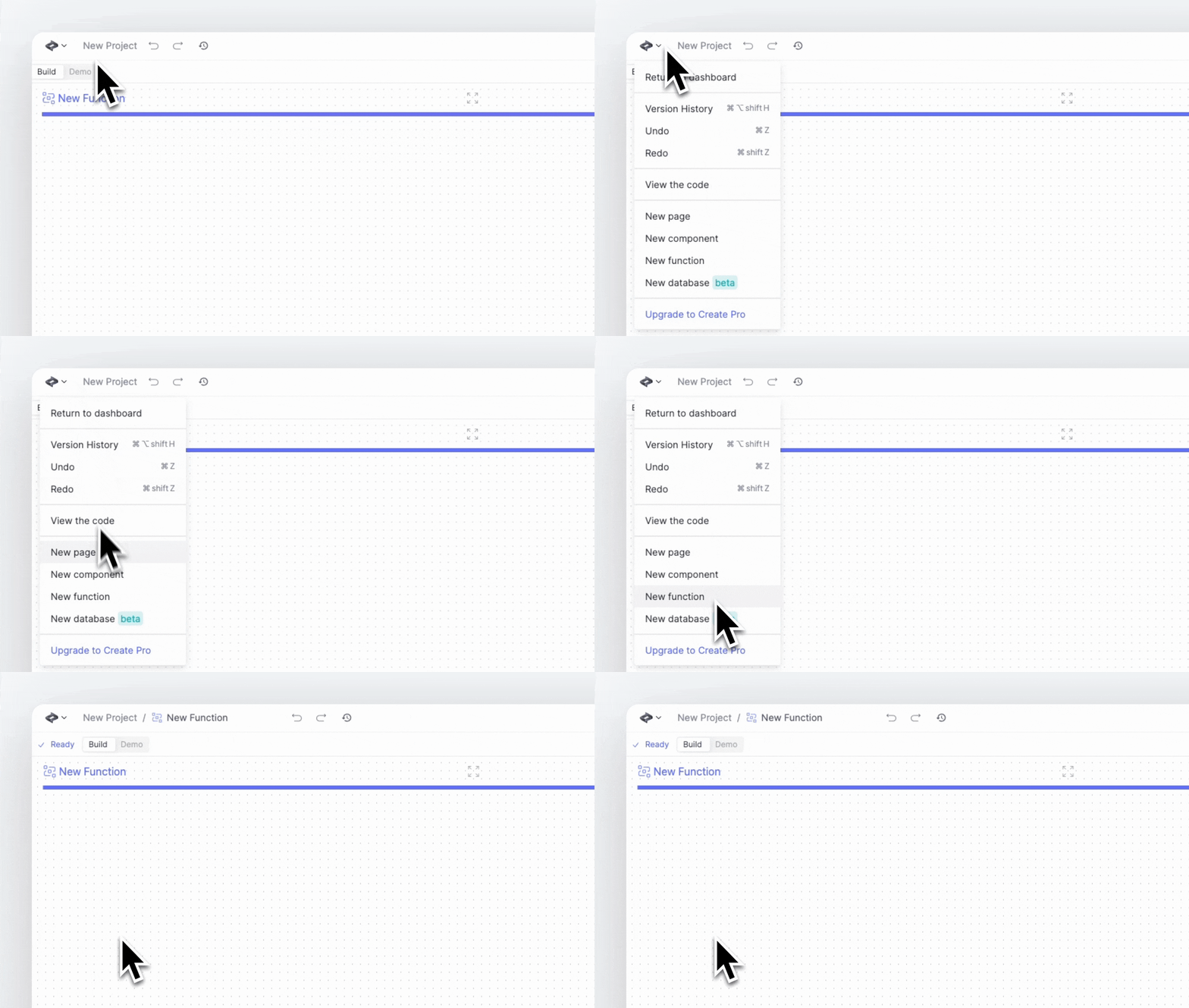
Creating a new Function
- What inputs it needs
- What logic it should perform
- What outputs it should return
- A flow diagram showing the Function’s logic
- The underlying serverless code (viewable in the “Code” tab)
- Input/output interfaces
Making Functions that Work
When building Functions:- For external APIs, find their documentation first. You can paste API endpoint URLs directly into the Function chat - Create will analyze the screenshot and write the code.
- If you get test errors, paste the error message back into your Function definition. Create often knows how to fix the specific issue.
Using Integrations, Databases, and Other Functions
Make your Functions more powerful by combining them with:- Integrations - Add AI capabilities and other features
- Databases - Store and retrieve data
- Other Functions - Chain multiple Functions together
-
Type
/or open the Add-ons menu - Select the Integration, Database, or Function
- Describe how you want to use it

Using an integration in a Function
- Uses ChatGPT to analyze text
- Stores results in a database
- Calls another Function to notify users
Testing Functions
Every Function has a full test runner available in the 3-dot menu > Run Test tab.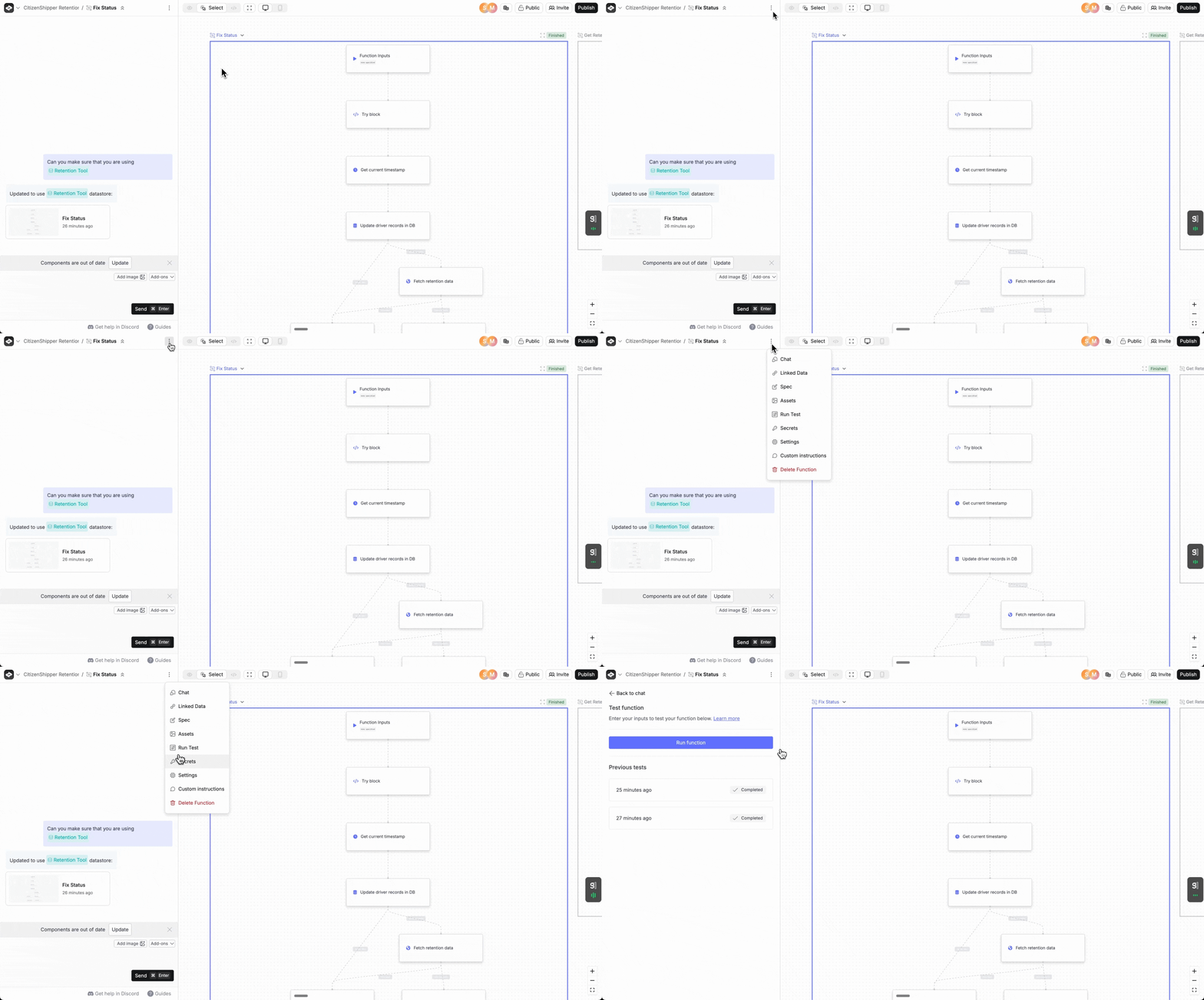
Accessing the test runner
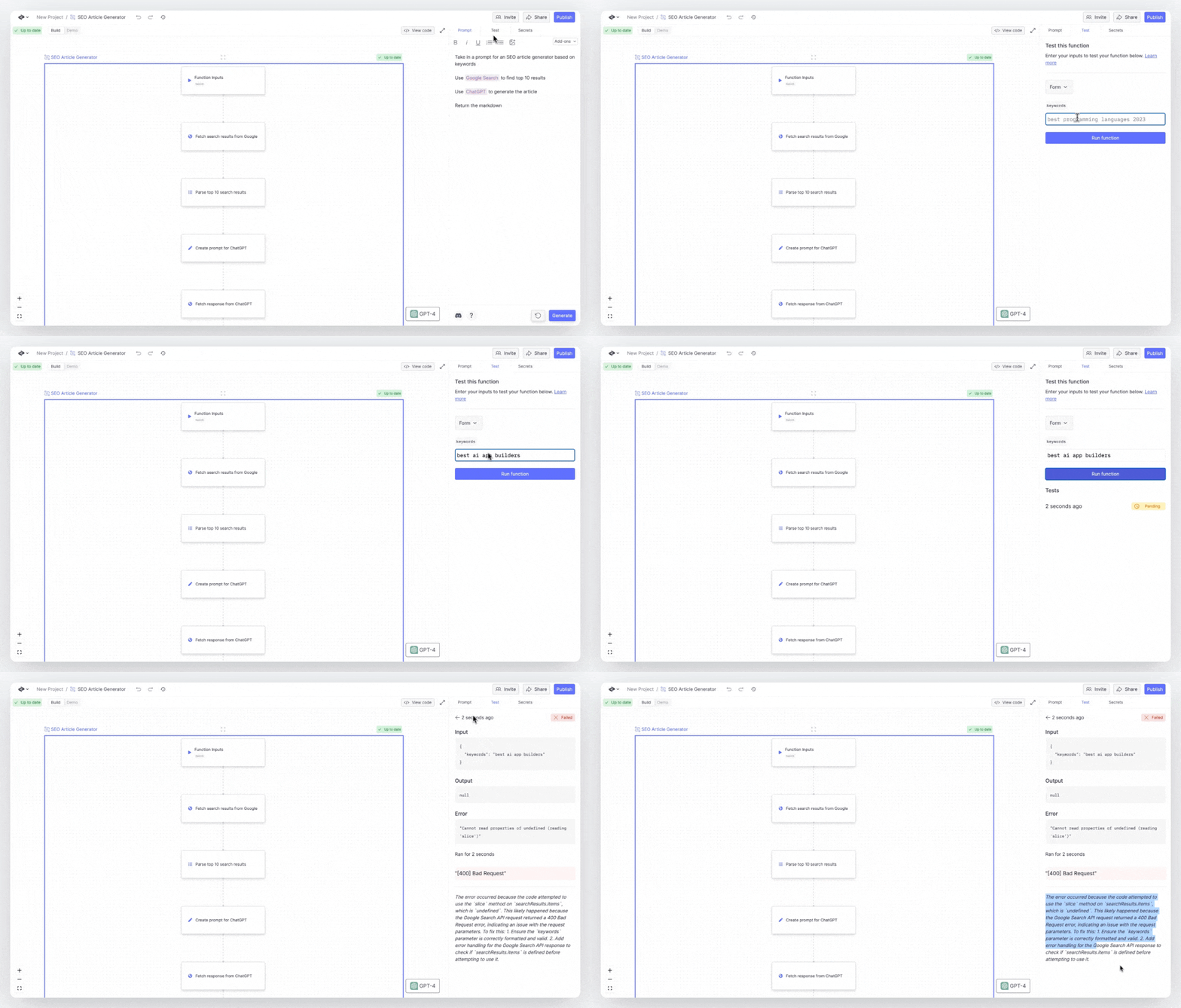
- Sample Inputs - Enter test data as Form or JSON
- Run Tests - Execute the Function with your inputs
- View Results - See outputs or error messages
- Debug - Use error descriptions to fix issues. You can often just paste the error description into your prompt to fix it.
Using Functions
Add Functions to pages, components, or other Functions:-
Type
/in chat - Select your Function
- Describe how you want to use it
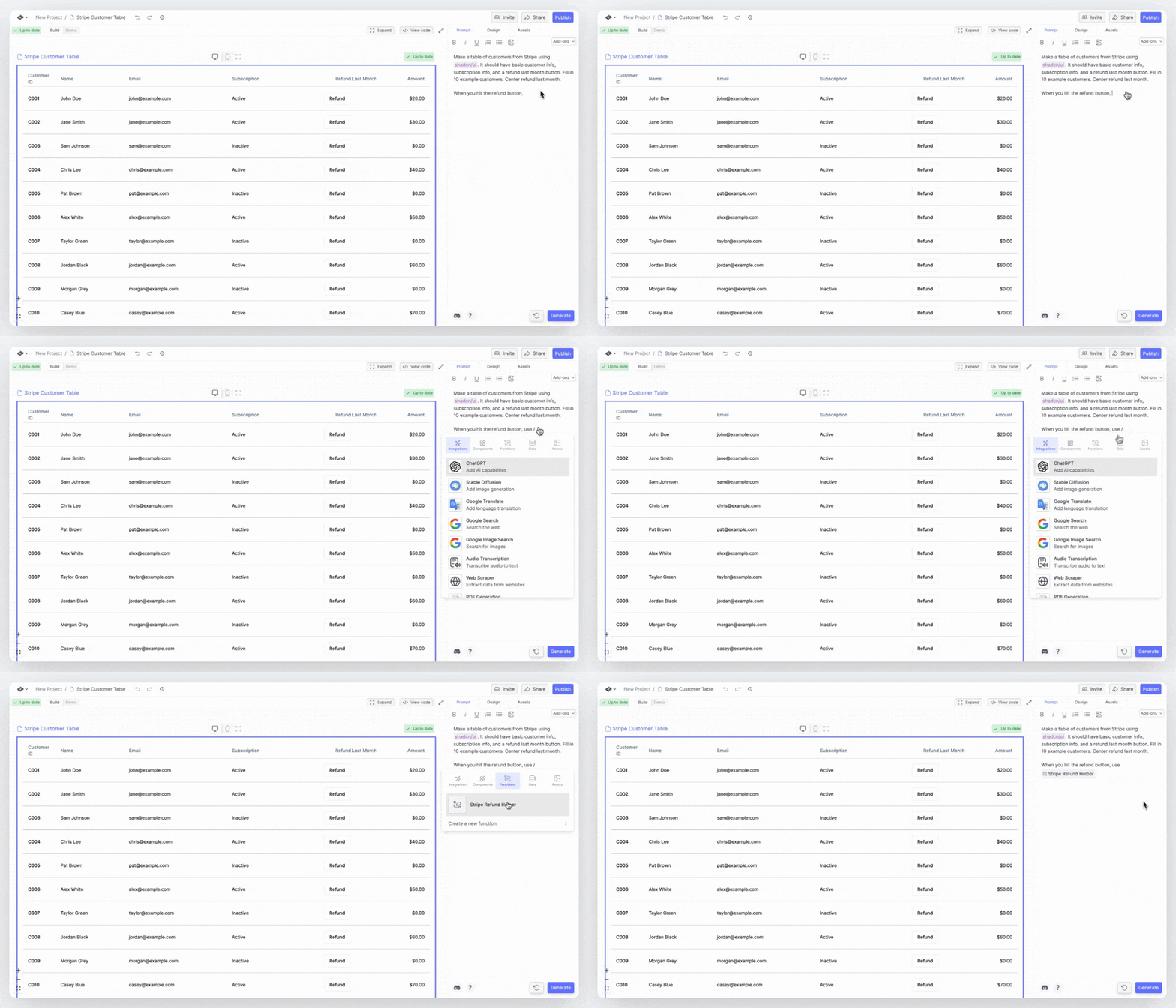
Using a Function
- Connecting inputs/outputs
- Error states
- Loading indicators
- UI integration
Updating Functions
After changing a Function:- Find where you integrated it
- Click “Update” next to the integration
- Create will refresh with latest changes
Changes to Functions don’t automatically update everywhere they’re used. This prevents unwanted changes from breaking your app.
External APIs and Secrets
Functions can connect to any external API. To use an API:- Store authentication details (API keys, tokens) as Secrets
- Tell Create which API to use - it will handle the integration
- Test carefully since calls hit live APIs
- Stripe: How to get your API Key
- GitHub: How to get your Personal Access Token
- Exa: How to get your API Key
- Twilio: How to get your API Key
- Sendgrid: How to get your API Key
- MailGun: How to get your API Key
- HubSpot: How to get your API key
Secrets
Secrets securely store sensitive data like API keys and passwords. They’re available to all Functions in your project. To add a Secret:- Open the “Secrets” panel from the 3-dot menu at the top of chat in any Function
- Click ”+ Add a new secret”
- Name it clearly (e.g. “Stripe API Key”)
- Enter the secret value
When using popular APIs like Stripe or Twilio, Create will often ask for specific secret names in chat (e.g. “Stripe Secret Key”). Use these as hints for what credentials you need.
- API Keys
- Access Tokens
- Basic Auth Credentials
- Bearer Tokens
OAuth tokens aren’t supported since they require refresh flows.
Publishing
When ready to launch:- Click Publish in top right
- Choose Functions to publish
- Set routes if needed (all Function routes start with /api)
- Enable/disable as needed