

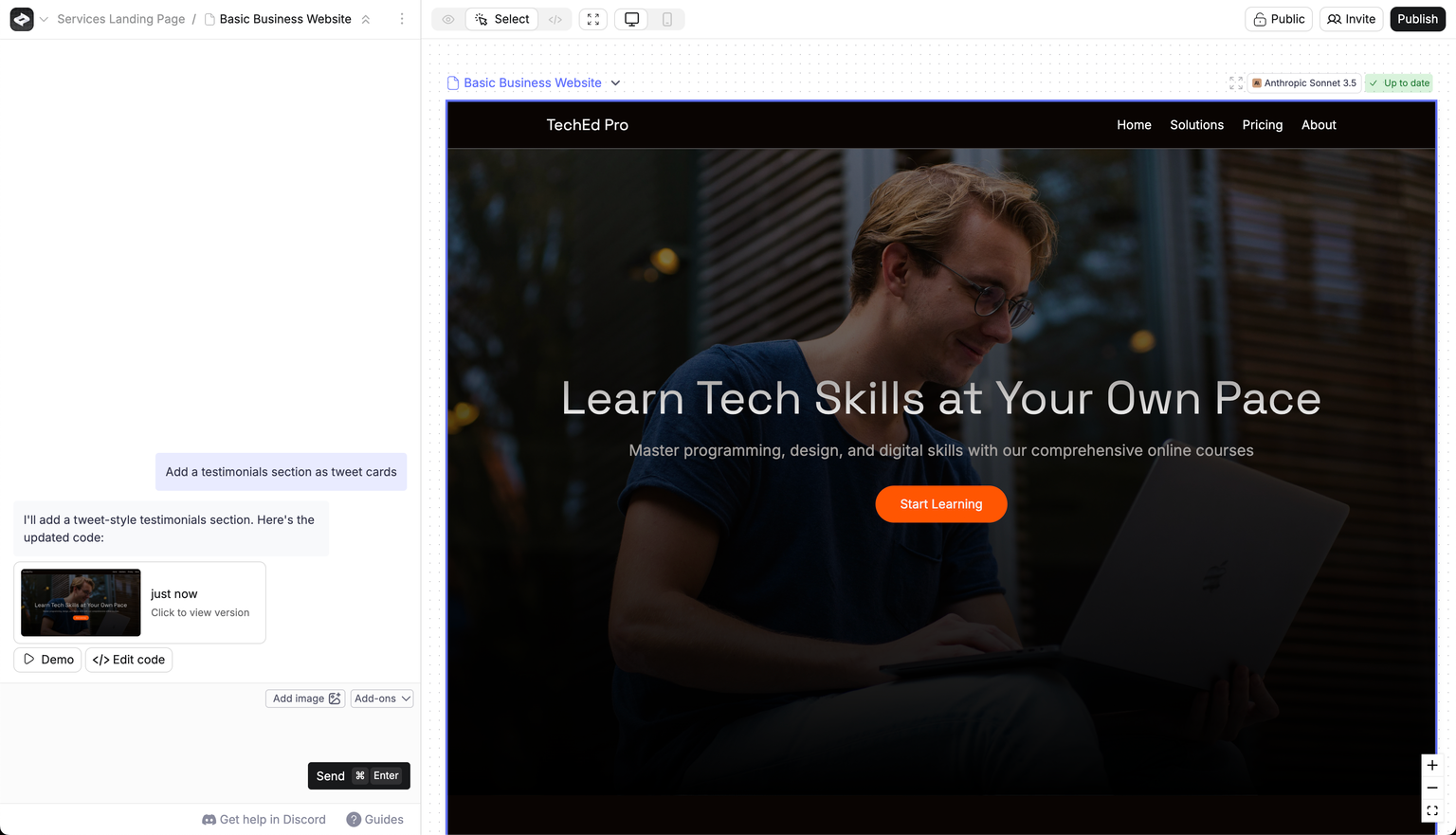
Create builder interface showing the main canvas, chat, and key controls
Getting started
You chat with Create to build your app. Tell it what to build using text or images (paste them in). Speed up with keyboard shortcuts:-
Press
cmd-enter(orctrl-enteron Windows) to send messages -
Use
/commands to add Integrations or create new elements
- Pages for your app’s screens
- Components for reusable UI pieces
- Functions for backend logic and external API calls
- Databases to store information
- User Accounts for authentication and users
- and more
Making improvements
Iterate on your app by sending more messages to the assistant. Create updates your app based on your instructions and the current state of the project. You can change what level of detail you want to work on:- When you select a specific element, messages update only that element
- When you select the canvas, messages can modify multiple elements at once
Generations
When you send a message, Create uses your message, message history, and the app’s code history to generate the code for a new version. When generating, you’ll see the code stream or a building icon. When it’s done, you can play with the app in Demo mode.Project-wide vs Single Element
You can generate changes at two levels: Project-wide generation- Tap the project name in Project Selector or tap on canvas
- Messages apply to entire project
- Create can edit across multiple elements
- Create can add new Pages, Components, Functions
- Good for:
- Building many elements quickly
- Maintaining consistent styles
- Features that span elements (navigation, databases)
- Tap element name in Project Selector or select element on canvas
- Messages only update that specific element
- Changes confined to selected Page, Component, or Function
- Good for:
- Making targeted changes with more control
- Refining specific features
- Debugging
Version history
As you chat with Create, it saves your version history automatically. You can:- Tap on previous versions in the chat to view them
- Restore any previous version as the current version
Demo vs. Select vs. Code
You can quickly switch between different modes to work on your app. Learn more about controls:- Demo mode: Try out your app’s functionality
- Select mode: Tap elements to make specific updates, create components, or add links
- Code mode: View and edit the underlying code
Creating new Elements
Add new elements to your project through:- Tapping the Logo Menu in the top left. From here make new Pages, Components, Functions.
-
/commands in the chat. See our guide on integrations
Canvas vs. Focused View
Toggle between two workspace views using the collapse icon:- Canvas: See multiple elements at once laid out on an infinite canvas
- Focused: See a single element at a time. Focused mode can help to test updates that impact scroll.